
Emptying the Trash#
You can choose to delete everything from the trash folder, or just select the files or folders that you want to delete. It’s important to note that once a file or folder has been deleted from the trash it cannot be restored.
To empty the trash:
- Click the 'trash' folder in the storage sidebar to open the trash folder.
-
To delete the entire contents of the trash, click the 'empty trash' button.

-
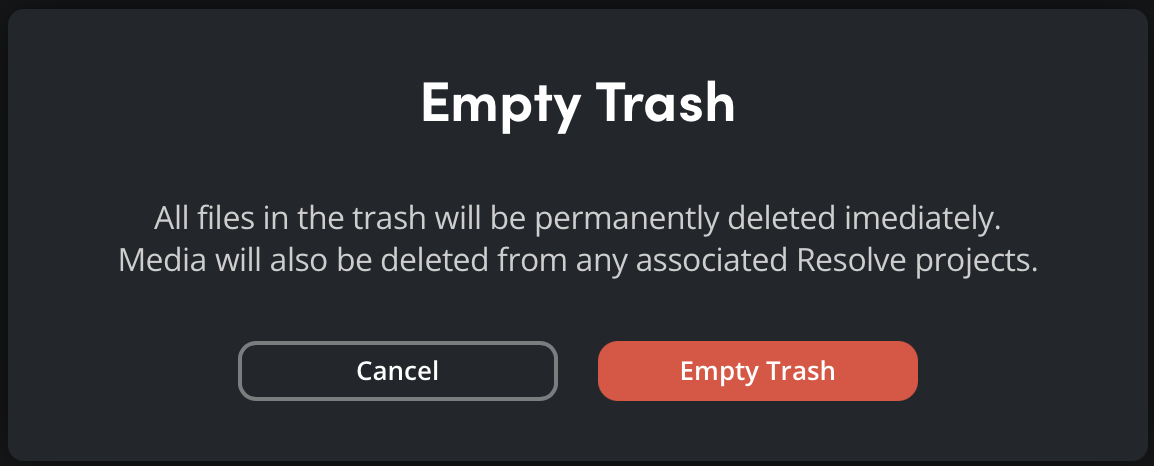
A message will be displayed asking you to confirm your choice and letting you know that this action will be permanent. To continue, click the red 'empty trash' button. The contents of the trash will be immediately deleted. To cancel and return to the trash folder, click 'cancel'.
Permanently Deleting a File or Folder#
If you don’t want to remove all the deleted items from the trash, you can delete a single file or folder.
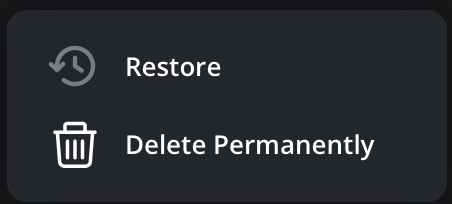
To do this, select the file or folder that you want to delete and click the options menu in the tool bar. Click ‘delete permanently’.
A message will be displayed prompting you to confirm your choice. Click ‘delete’ to permanently delete the file or folder, or click ‘cancel’ to return to the trash folder.