

Blackmagic Cloud Project Server on the Web#
Cloud project libraries are best managed from within DaVinci Resolve, however there is a web interface as well. This interface lets you see what projects are in each library, search and sort, and create new cloud project libraries.
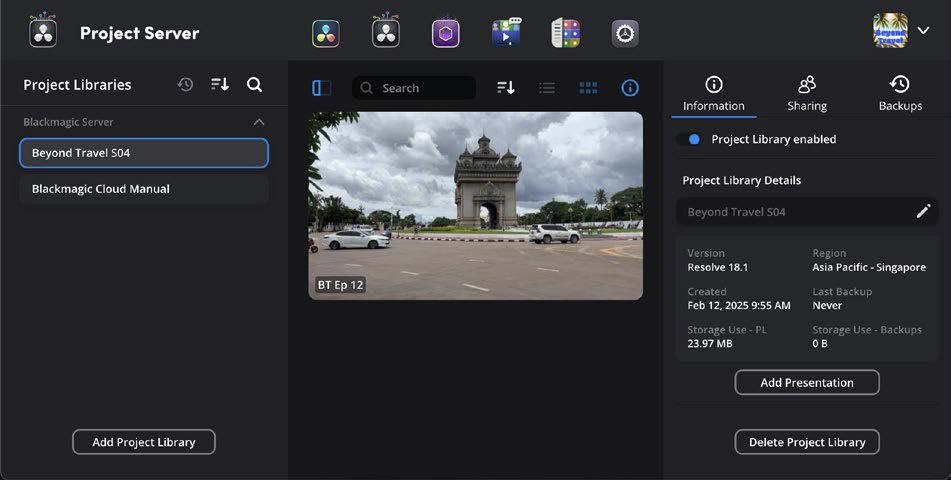
The Blackmagic Cloud Project Server web interface
When initially opened, the Project Server will show all the active projects in your last used project library. All of your cloud project libraries will be listed in the left hand pane, and you can add new ones by clicking on the Add Project Library button at the bottom.
When a cloud project library is selected, all of the projects it contains will be displayed and can be searched for, sorted, and listed using the respective controls on the right side of the toolbar. As of this writing, on the web interface, projects can only be viewable. In order to create, delete, copy or otherwise manage an individual project, you must do it from within the DaVinci Resolve Project Manager instead
By clicking on the information icon, on the right hand side of the toolbar, you can open the libraries’ sharing settings. Here you can add, enable, or disable the project library, or add a new presentation. The Sharing tab shows you who currently has access to the project library, and you can add more users by clicking on the Share Project Library button below. The Backups tab lets you create and restore backups of your project library to the Blackmagic Cloud; you can optionally set automatic daily backups for added safety.